top みたいなシステム観察の他にscreenfetch のようなシステム情報,更にベンチマーク機能のあるsot というツールを試してみました.
sot 導入
sot はいくつかの導入方法があります. curl | bash が最初にお勧めとして紹介されていますが個人的にこれは好きではないのでuv で導入しました.
$ uv tool install sot
$ which sot
/home/matoken/.local/bin/sot
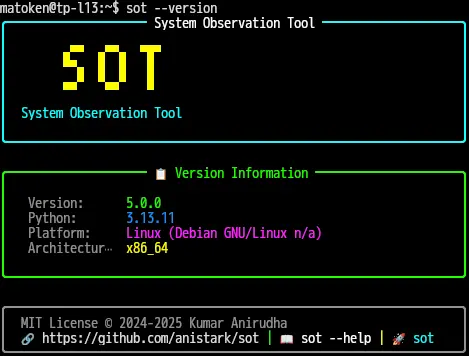
$ sot --version
╭──────────────────── System Observation Tool ────────────────────╮
│                                                                 │
│        ▄▀▀  ▄▀▀▄  ▀█▀                                           │
│        ▀▀▄  █  █   █                                            │
│        ▄▄▀  ▀▄▄▀   █                                            │
│                                                                 │
│  System Observation Tool                                        │
│                                                                 │
╰─────────────────────────────────────────────────────────────────╯

╭──────────────────── 📋 Version Information ─────────────────────╮
│                                                                 │
│   Version:      5.0.0                                           │
│   Python:       3.13.11                                         │
│   Platform:     Linux (Debian GNU/Linux n/a)                    │
│   Architectur…  x86_64                                          │
│                                                                 │
╰─────────────────────────────────────────────────────────────────╯

╭─────────────────────────────────────────────────────────────────╮
│  MIT License © 2024-2025 Kumar Anirudha                         │
│  🔗 https://github.com/anistark/sot | 📖 sot --help | 🚀 sot    │
╰─────────────────────────────────────────────────────────────────╯
Note | sot 4.4.2 で試したときはuv 及びpipx での導入時にシステム情報表示機能の info option や sot: error: unrecognized arguments: info sot: error: unrecognized arguments: bench |
sot 実行
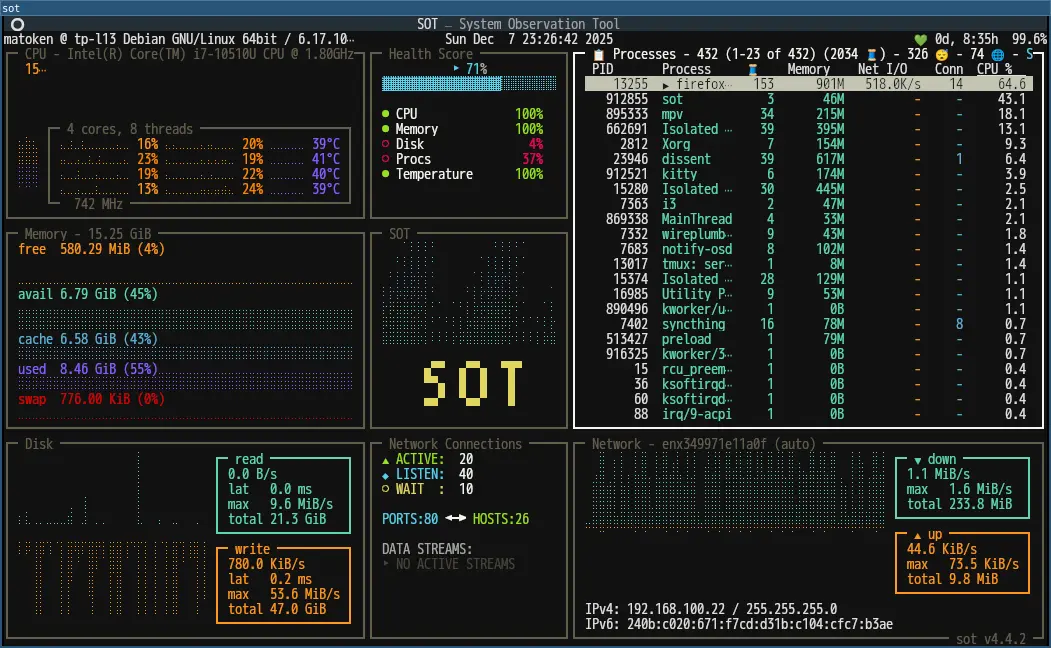
まずはオプション無しでsot 実行.top のような動きです.
o key で並べ替えモードになり矢印キーで設定,Enter で総巡航順変更, q で並べ替えモードから抜けます.
Ctrl+q で終了です.
カラフルで楽しいです.
sot システム情報表示(info)
次にシステム情報表示の info オプションを試します.
$ sot info
       _,met$$$$$gg.            Host        -  matoken@tp-l13
    ,g$$$$$$$$$$$$$$$P.
  ,g$$P"     """Y$$."`.         OS          -  Debian GNU/Linux n/a
 ,$$P'              `$$$.       Kernel      -  6.17.10+deb14-amd64
',$$P       ,ggs.     `$$b:     DE          -  i3
`d$$'     ,$P"'   .    $$$      WM          -  x11
 $$P      d$'     ,    $$P      Shell       -  bash
 $$:      $$.   -    ,d$$'      Terminal    -  xterm-kitty
 $$;      Y$b._   _,d$P'
 Y$$.    `.`"Y$$$$P"'           Memory      -  9 GiB / 15 GiB
 `$$b      "-.__
  `Y$$
   `Y$$.                        Uptime      -  8h 53m
     `$$b.                      Battery     -  100% & Discharging
       `Y$$b.
Battery があるのは珍しいですね.でも値は間違っていそう?
logoの種類は以下の通り.少し少なめ.
macOS: Apple logo
Linux Distributions:
Ubuntu
Debian
Fedora
Red Hat / RHEL
Arch Linux
Manjaro
Pop!_OS
CentOS
Generic Linux/Tux (fallback)
Windows: Windows logo
sot ベンチマーク(bench)
次にベンチマークの bench オプション.
実行時にシステム内のディスクが表示されるのでベンチ対象をカーソルで選択しベンチマークを実行します.
Use arrow keys (↑↓) to navigate, Enter to select, or 'q' to quit:

  ❯ 0: System - 450.9 GiB total, 4.6 GiB free
    1: efi - 511.0 MiB total, 501.9 MiB free
    2: boot - 455.1 MiB total, 338.7 MiB free
    3: 068d2d0a-235d-4c86-839e-4d37081979a2 - 457.4 GiB total, 197.5 MiB free

✓ Selected: System
  Using partition: /dev/mapper/tp--l13--vg-root (/)

Running benchmarks on System...

Per-benchmark duration: 10.0s

Benchmarking... ━━━━━━━━━━━━━━━━━━━━━━━━━━━━━━━━━━━━━━━━ 100% 00:01:31.39


╭────────────────────────────────────────────────────────────────────────────────────────────────────────────────── System ───────────────────────────────────────────────────────────────────────────────────────────────────────────────────│ Disk ID: /dev/mapper/tp--l13--vg-root (System)                                                                                                                                                                                              │
│ Total Capacity: 450.9 GiB                                                                                                                                                                                                                   │
│ Free Space: 4.6 GiB                                                                                                                                                                                                                         │
│ Cache Directory: /home/matoken/.sot/bench                                                                                                                                                                                                   │
│                                                                                                                                                                                                                                             │
│ Partitions:                                                                                                                                                                                                                                 │
│   • /dev/mapper/tp--l13--vg-root → /                                                                                                                                                                                                       │   • /dev/mapper/tp--l13--vg-root → /run/schroot/mount/bookworm-i386-53c15ea2-b9a4-4693-b02b-be7786ca929f                                                                                                                                   │   • /dev/mapper/tp--l13--vg-root → /run/schroot/mount/bookworm-i386-53c15ea2-b9a4-4693-b02b-be7786ca929f/home                                                                                                                              ╰─────────────────────────────────────────────────────────────────────────────────────────────────────────────────────────────────────────────────────────────────────────────────────────────────────────────────────────────────────────────                                     Benchmark Results
┏━━━━━━━━━━━━━━━━━━━┳━━━━━━━━━━━━━━━━━┳━━━━━━━━━━━━━┳━━━━━━━━━━━━━┳━━━━━━━━━━━━━┳━━━━━━━━━━┓
┃ Test              ┃ Throughput/IOPS ┃ Avg Latency ┃ p95 Latency ┃ p99 Latency ┃ Duration ┃
┡━━━━━━━━━━━━━━━━━━━╇━━━━━━━━━━━━━━━━━╇━━━━━━━━━━━━━╇━━━━━━━━━━━━━╇━━━━━━━━━━━━━╇━━━━━━━━━━┩
│ Sequential Read   │ 245.9 MB/s      │ 4.06 ms     │ 11.76 ms    │ 24.01 ms    │ 10.00 s  │
│ Sequential Write  │ 177.7 MB/s      │ 5.59 ms     │ 9.13 ms     │ 12.46 ms    │ 10.00 s  │
│ Random Read IOPS  │ 40.61 KIO/s     │ 20.43 µs    │ 107.53 µs   │ 211.48 µs   │ 10.00 s  │
│ Random Write IOPS │ 834.60 IO/s     │ 1.18 ms     │ 2.59 ms     │ 5.12 ms     │ 10.00 s  │
└───────────────────┴─────────────────┴─────────────┴─────────────┴─────────────┴──────────┘

✓ Benchmarking completed successfully
簡易的なベンチに良さそうです.
sot ディスク情報(disk)
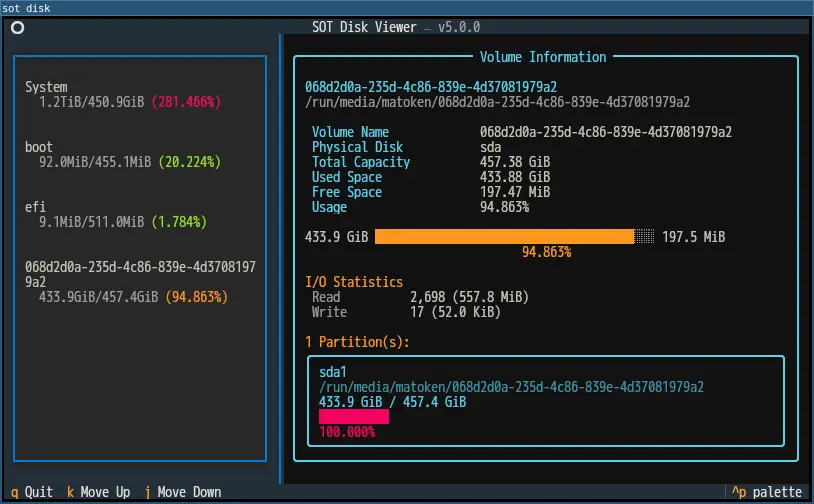
もう一つdisk オプション.これは最近追加されたオプションのようでディスク情報をインタラクティブに表示するもののようです.
カーソルでディスクを選択してEnter で情報が見れます.
$ sot disk